
A neon gaming setup works best when the lighting is designed rather than simply turned on. Purple and blue create a strong futuristic palette, but the room still needs functional light, comfortable screen visibility, clean cable routing, and enough open desk space to play.
The most impressive purple-and-blue gaming setups usually rely on controlled contrast: a dark or neutral background, one dominant glow, and a few carefully placed accents. This guide explains how to build that look with monitor backlighting, vertical light bars, wall lighting, desk organization, and practical comfort adjustments.
Product notes are based on current Amazon US listing details and practical setup considerations, not claimed hands-on testing. Prices and availability can change, so check the linked listing before purchasing.
Quick Picks
| Accessory | Best for | Approx. listing status |
|---|---|---|
| Govee Gaming Light for Monitor G1 | A 27–34-inch PC monitor that needs screen-matched backlighting | Check Price |
| Govee Gaming Light Bars Pro | Adding vertical purple-and-blue light beside a monitor | Check Price |
| Nanoleaf Lines 60° Smarter Kit, 9 Lines | Making the wall behind the desk the visual centerpiece | Check Price |
3 Accessories for a Neon Gaming Setup
1. Govee Gaming Light for Monitor G1, RGBIC LED Backlight for 27–34-Inch PC Monitors
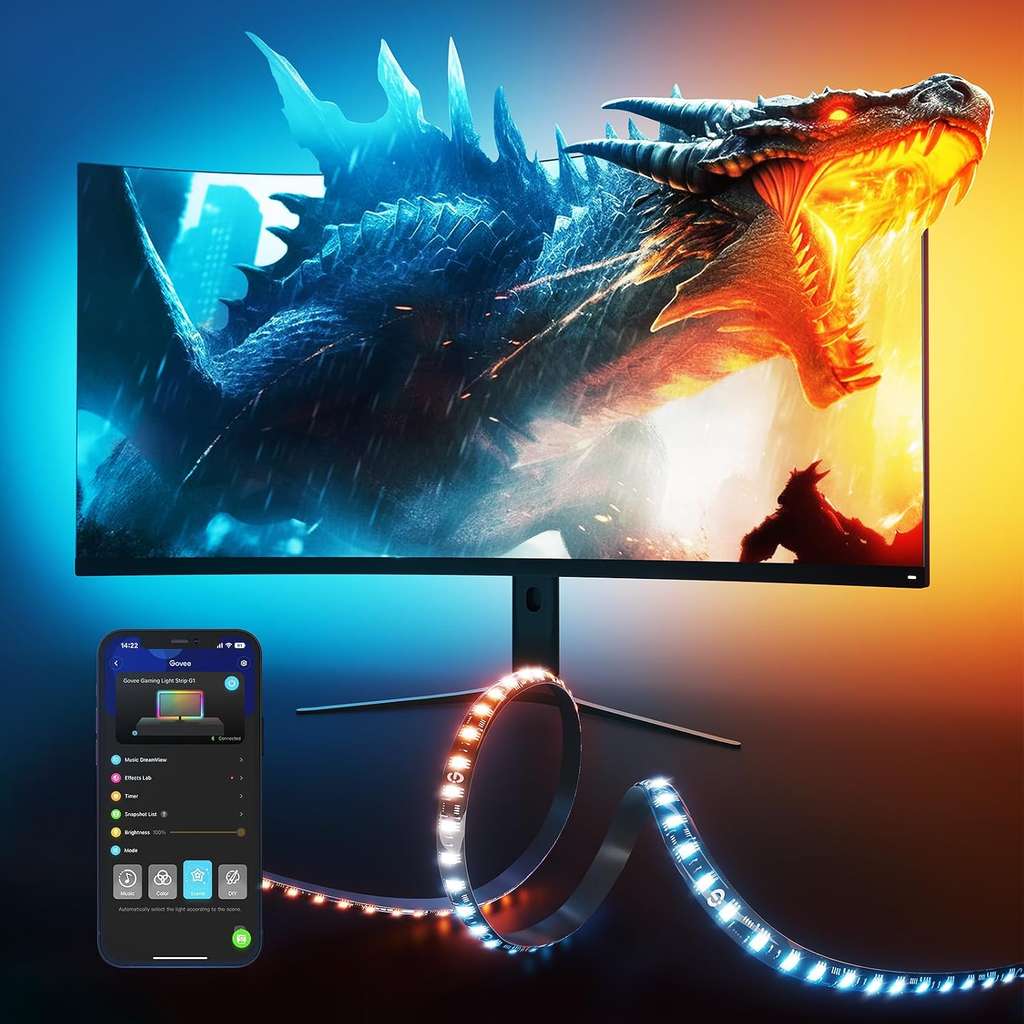
Best for: A PC gamer with a 27–34-inch display who wants a reactive glow behind the screen.
Compatibility: 27–34-inch monitors, including curved displays; Govee Desktop features require Windows 10 or Windows 11.
Why We Recommend It
Monitor backlighting is a high-impact first upgrade because it creates a halo without using desk space. The Govee Gaming Light for Monitor G1 is a more targeted option than a general LED strip because the verified listing identifies a 27–34-inch monitor fit, four-sided coverage, curved-monitor suitability, scene modes, and desktop software for color matching.
Use blue as the low-key base color and let purple appear in the scenes or at the edges of the display. Mount the LEDs on the rear of the monitor so the wall, rather than the player’s eyes, receives most of the glow.
Key Features
- RGBIC monitor backlighting for 27–34-inch PC monitors
- Suitable for compatible curved displays
- Four-sided light coverage around the screen
- Govee scene modes and desktop color-matching features
- Windows 10 and Windows 11 requirement for the PC software
Pros
- Uses the wall behind the monitor as a soft diffuser.
- Helps separate the display from a dark background.
- Fits naturally into a purple-and-blue color plan.
Cons
- It is designed for a specific monitor-size range.
- Some software features require Windows.
- It is less flexible than a general strip if you regularly move the light between rooms.
What to Check Before Buying
Confirm your monitor’s diagonal size and whether its rear shape leaves enough room for the adhesive strip. Check the current listing for the exact variant, seller, price, and operating-system requirements.
Bias lighting is not a guarantee against eye strain. Glare, poor viewing distance, posture, and long uninterrupted sessions can also contribute to discomfort. The American Optometric Association recommends positioning a screen to avoid glare and suggests looking into the distance for 20 seconds every 20 minutes during extended computer viewing.
2. Govee Gaming Light Bars Pro, Upgraded 16-Inch Smart Triple-Sided RGBIC Illumination

Best for: A gaming desk that needs height, depth, and a visible purple-and-blue glow beside the monitor.
Compatibility: Works with the Govee Home ecosystem; Govee Desktop color matching requires Windows.
Why We Recommend It
Light bars make a desk feel taller and keep the wall from looking like a flat block of color. Place one bar on each side of the monitor, slightly behind the front edge of the desk. Aim the light toward the wall for a softer look, or rotate the bars slightly toward the camera when the setup is also a streaming background.
The verified Amazon US listing identifies this two-bar set as model H6048, ASIN B0DYNX1WYG. It lists triple-sided illumination, 60-plus scene modes, music synchronization, Matter support, and Alexa and Google Home compatibility. The listing also notes that color matching through Govee Desktop requires Windows.
Set one bar to blue and the other to purple, then lower both until the monitor remains the brightest object on the desk. If the bars are too bright, the setup can feel more like a showroom than a comfortable gaming station.
Key Features
- Two 16-inch gaming light bars
- Triple-sided RGBIC illumination
- 60-plus scene modes
- Music synchronization
- Matter, Alexa, and Google Home support listed on Amazon
- Govee Desktop screen color matching on Windows
Pros
- Adds vertical depth without wall mounting.
- Works well for gaming photos and streaming backgrounds.
- Provides a simple way to separate blue and purple into two zones.
Cons
- Windows is required for the listed desktop color-matching feature.
- Brightness and placement need adjustment to avoid visual distraction.
- The pair occupies some desk or shelf space.
What to Check Before Buying
Confirm that you have room beside or behind the display for both bases. If you want screen-reactive effects, verify that your computer meets the current software requirements. Check the listing for the exact H6048 set rather than a visually similar Govee light-bar variant.
3. Nanoleaf Lines WiFi Smart RGBW 16M Color LED Wall Lights, 60° Smarter Kit, 9 Lines
Best for: A neon gaming room where the wall behind the desk should be the visual signature.
Compatibility: Nanoleaf app and controller; the listing also describes music response, screen matching, and smart-home control.
Why We Recommend It
A geometric wall light can turn a basic desk into a recognizable gaming backdrop. Place the pattern above or beside the monitor, leaving enough space that it does not look physically attached to the screen. Angled lines, a simple chevron, or a wide V shape usually reads better than a dense pattern in a small room.
The verified Amazon listing is for the 60 Degree Smarter Kit with 9 Lines, model NL59-K-0003LW-9PK, ASIN B09LWVWN8M. It lists 16M-plus colors, animated scenes, music response, screen matching, app and controller control, and adhesive mounting tape.
Plan the pattern on the floor first. Photograph it, measure the total width, and mark the centerline on the wall before using adhesive. Keep the installation away from areas where chair backs, door handles, or shelves may catch it.
Key Features
- 9-line, 60-degree starter kit
- 16M-plus RGBW color options listed by Amazon
- Animated and music-responsive scenes
- Screen-matching mode listed on the product page
- App, controller, and smart-home control options
- Adhesive mounting tape included in the listed kit contents
Pros
- Creates a clear focal point without using desk space.
- Easy to coordinate with blue ambient light and purple accents.
- Expandable with compatible expansion packs.
Cons
- Requires more wall planning than a monitor backlight.
- Adhesive mounting makes placement important.
- The wall pattern may dominate a small room if brightness is set too high.
What to Check Before Buying
Confirm that the listing is the 60-degree 9-Line kit, not a different number of Lines or connector angle. Measure the wall, check the mounting surface, and plan the power-cable route before installation.
How to Build a Purple-and-Blue Neon Gaming Setup
Step 1 — Choose a dark visual foundation
Dark walls, furniture, or backdrop materials make purple and blue light read more clearly. If repainting is not practical, use a dark desk mat, black monitor accessories, and a controlled camera background.
Step 2 — Plan the dominant color
Choose blue as the base and purple as the accent, or reverse the relationship. A simple 70/30 color split usually looks more coherent than switching every light to a different color.
Step 3 — Position the desk and monitor
Place the main display directly in front of the chair and keep the desk clear enough for normal mouse movement. Align dual monitors at the top edge and avoid placing the brightest light directly in the gap between them.
The AOA says many people find it more comfortable to look slightly downward, with the screen about 15–20 degrees below eye level and roughly 20–28 inches from the eyes. Use that as a starting point, then adjust for your monitor size and seating position. 1
Step 4 — Add monitor backlighting first
Place a light strip behind the monitor so the wall receives a soft halo. Keep the brightest light behind or beside the screen rather than directly in the player’s eyes.
Step 5 — Add functional desk lighting
Functional light is separate from RGB accent light. A neutral or warm desk lamp should illuminate the keyboard, notes, and nearby controls without creating a bright reflection on the display.
The American Academy of Ophthalmology recommends matching screen brightness to surrounding light and adjusting contrast and nearby lighting to improve comfort. 2
Step 6 — Add purple or blue desk accents
Use the second color on the PC interior, keyboard, mouse, headset stand, shelf edge, or wall accent. Repeating the accent color in two or three locations is enough to connect the room visually.
Step 7 — Hide and group cables
Route power, display, USB, Ethernet, and charging cables toward the rear edge. Neon lighting reveals clutter, so sleeves, trays, ties, and clips matter as much as the lights themselves.
Step 8 — Build the audio and streaming zone
Keep the microphone, headset, webcam, and controller in a defined area. Match their RGB profiles where possible, but keep brightness low enough that the equipment remains usable.
Step 9 — Add depth with layered light
Use a near light at the desk, a mid-distance glow behind the monitor, and a far accent on the wall or shelf. Layering creates depth; placing every light at the same height creates a flat wash.
Step 10 — Tune brightness and finish the room
Lower the brightness until the setup remains comfortable during a long session. Finish with a small amount of coordinated décor rather than adding more LEDs to every available surface.
How to Make a Neon Gaming Room Look Premium
A clean desk usually comes from monitor positioning, a shelf or riser, cable routing, under-desk storage, a headset stand, and restrained lighting. The result should look premium because it is controlled, not because every surface glows.
Use blue for the broad background wash and purple for the focal points. Leave some areas dark so the light has contrast. If the wall, desk, monitor, and accessories all glow at the same intensity, the eye has nowhere to rest.
How to Light a Dual-Monitor Neon Setup
Start with a broad blue halo behind both screens and place purple accents toward the outer edges. Align the monitors and keep the center gap visually quiet. A monitor arm can remove bulky stands and create room beneath the screens, but confirm the VESA pattern, display weight, desk thickness, and clamp clearance before buying one.
A symmetrical layout works well for a competitive PC desk. A slightly asymmetrical wall pattern feels more like a studio or streamer setup. In either case, route the display and power cables before final tightening so the arms can still move safely.
Neon Gaming Setup Mistakes to Avoid
The most common mistakes are adding too much RGB, pointing bare LEDs toward the face, ignoring glare, hiding cables after the lighting is installed, overcrowding the desk, mounting adhesive lights without measuring first, choosing a monitor-specific product for the wrong screen size, and using a bright animated scene for every task.
If the display has visible reflections, move the light source or change the monitor angle before buying another accessory. The AOA identifies poor lighting and screen glare as contributors to digital eyestrain and recommends positioning the screen to avoid overhead and window glare.
Frequently Asked Questions
What colors work best for a neon gaming setup?
Purple and blue work well together when one is used as the base and the other as the accent. Blue can provide the broader ambient wash, while purple marks the monitor, wall pattern, shelf, or other focal point.
How do I make a purple-and-blue gaming setup look better?
Start with a dark or neutral foundation, hide cables, align the monitors, and limit the brightest light to one or two focal areas. A controlled layout generally looks more premium than a crowded desk with every RGB product set to maximum brightness.
Where should LED lights go in a gaming setup?
Place them behind the monitor, under the rear edge of the desk, behind shelves, or on the wall. These locations create reflected light and reduce the chance of bare LEDs shining directly into your eyes.
Is monitor backlighting worth it?
It can be one of the most noticeable visual upgrades because it separates the screen from the wall and uses little desk space. Confirm the monitor-size range and software requirements before buying a monitor-specific product such as the Govee Gaming Light for Monitor G1.
How do I hide cables in a neon gaming room?
Group cables by destination, route them toward the rear edge, use an under-desk tray or sleeve, secure slack with reusable ties, and leave enough movement for adjustable monitor arms. Complete this work before mounting wall lights.
How bright should gaming room LED lights be?
Use enough brightness to create a visible glow without making the room uncomfortable or causing reflections. Lower the brightness at night and use a neutral or warm functional light for reading, working, and moving around the room.
